


Easy Check-in
Skip the lobby and go straight to your room without a physical key.
Simply hold your Apple Wallet or Google Wallet™ enabled smart device near the door lock. It’s easy, convenient, and private.
Skip the lobby and go straight to your room without a physical key.

You don’t need to wake or unlock your smartphone or smartwatch.

It’s easy, convenient, and private.

Even without a charge, you still get into your room (subject to device used).
Apple Wallet can be used for digital keys at:
Google Wallet™ can be used for digital keys at:
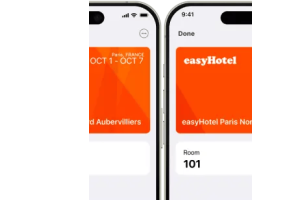
Before you arrive, open the easyHotel app to add your room key to your chosen wallet and then use your chosen smart device. Once you complete the check-in process in the app, your room key will be activated and ready to go.

If you are using Apple Wallet enabled devices, these faqs should help.
(Available only at select hotels. Requires eligible device and OS version)

After booking, you can add your room key to Apple Wallet via the easyHotel app. Your room key will be activated once you check in and your room is assigned. To use your room key, simply hold your iPhone or Apple Watch near the door lock. With Express Mode, there’s no need to unlock your device or open an app.
When your keys are in Apple Wallet on your iPhone or Apple Watch, they’re stored on your device, which means Apple doesn’t see the doors or spaces you unlock. Your data is private and secure.
If your iPhone needs a charge, your room keys in Apple Wallet will still work. Power Reserve provides up to five hours of access, so you can still get inside. Power reserve works with Express mode for iPhone XS, iPhone XS Max, iPhone XR, and more recent devices.
Standard digital keys utilise Bluetooth technology that allow guests to use apps on their iPhone or Android phone as a digital key. Your room key in Apple Wallet can be securely used without opening an app or even unlocking your device. If you change rooms or add a few extra nights to your stay, your room key automatically updates in the background — so there's no extra work for you, and no extra trips to the front desk. And if you’re out late to dinner, your room key in Apple Wallet may work for up to five hours after your device needs a charge.
When you add a room key to Apple Wallet on your iPhone, it is automatically added to your paired Apple Watch. Once your room key has been added, simply hold your Apple Watch near the reader to unlock.
In addition to opening your room, your room key can be used in the same areas where you would use a plastic key:
Yes. Your room key will be automatically activated for each room that you have reserved.
After your room key has been activated in Apple Wallet, simply hold the device against the lock to unlock. There is no need to unlock your device or even open an app.
A room key can be added to Apple Wallet after you book a reservation. The room key will automatically activate once you check in and your room has been assigned.
Currently easyHotel London Shoreditch supports the new room key capabilities. We will be adding support for rooms keys in Apple Wallet to our other easyHotel’s in the near future.
If you think your iPhone or Apple Watch is lost or stolen, you can use iCloud.com or the Find My app on another Apple device to suspend or deactivate your room key in Apple Wallet. Visit support.apple.com to learn what to do if your iPhone is lost or stolen, or if your Apple Watch is lost or stolen. If you need a new room key, please visit the front desk.
If you are using Google Wallet enabled devices, these faqs should help.
(Google, Android, Google Wallet, and other marks are trademarks of Google LLC.)
You can add your room key to Google Wallet and access your hotel room and other secure common areas with Android phones or Wear OS watch. It is a secure, contactless way to move through the property without a physical keycard.
You must download and sign in to the Google Wallet app before downloading the key to your phone. A room key can be added to Google Wallet after you book a reservation. Once you complete online check-in, click the "Add to Google Wallet" button on your itinerary or within the hotel app. The key will automatically activate once your room has been assigned. To use it, simply wake your phone and hold the back of the device near the door lock.
When you add a new hotel key, Google Wallet doesn't show it on the main screen automatically. To find it, tap View more at the bottom of your passes, locate your hotel key, then tap the favourite (star) icon. Once favourited, the key will appear on your Wallet home screen for quick access.
Yes. Your digital key will be provisioned to grant access to the rooms associated with your reservation, provided the hotel's lock system supports multi-room access on a single digital credential.
In addition to your room, your digital key can be used to access the same hotel spaces as a physical key, such as elevators, main entrances, fitness centers, and pool areas. Note: Access to specific areas may vary by hotel location.
Room keys are stored securely on your device in Google Wallet. Google does not track when or where you use your key. For added security, your device must have a screen lock set up (PIN, pattern, or biometric) to use the digital key.
For most interactions, you only need to wake your screen (the screen is lit, but not necessarily bypassed by your PIN or fingerprint). However, for security, Google Wallet may occasionally require you to unlock the device after a certain number of uses or a period of inactivity.
Guests should try restarting the device. A reboot won’t affect any other cards or passes but can sometimes resolve temporary sync issues. If the key is still stuck, eg. cannot be removed or added, Guest should also try clearing the Google Wallet app cache (Settings → Apps → Google Wallet → Storage → Clear cache). It won’t remove any cards already in the wallet.
No. Google Wallet keys require the device to be powered on. If your phone battery dies, you will need to use a physical keycard or charge your device to regain access.
Google Wallet allows for one key per phone and one key per wearable. You will need to add the key to your watch through the "Add to Google Wallet" flow on your phone when prompted to choose a device.
You can add and use your room key on one phone and one paired watch. Google limits the digital key to one phone and one watch at a time to ensure security.
Use Android’s "Find My Device" (google.com/android/find) to remotely lock or erase your device. This will prevent anyone from using the keys in your Google Wallet. You should also notify the hotel front desk immediately so they can revoke the digital key in their system.
Try these troubleshooting steps:
The hotel must have NFC-compatible locks and the specific integration (Assa Abloy or Dormakaba) required to support Google Wallet.
No. Sharing capabilities are currently not available for Google Wallet hotel keys. Only the primary guest who receives the "Add to Google Wallet" link can provision the key to their device. Other guests should use physical keycards or their own digital keys if the hotel supports individual issuance.
Google Wallet keys use NFC (Near Field Communication) for a fast, tap-and-go experience - much like using Google Pay. This is a key difference from standard digital keys, which often use Bluetooth (BLE) and require you to find and open a specific hotel app before you can unlock your door.
It allows the digital hotel key and its associated reservation data to be shared with other Google services like Google Maps and Google Assistant.
Turning this on provides the following conveniences:
If this toggle is off, your hotel key data remains strictly within the Google Wallet app and won't be used to personalise your experience in other Google apps